Cricut Design Space
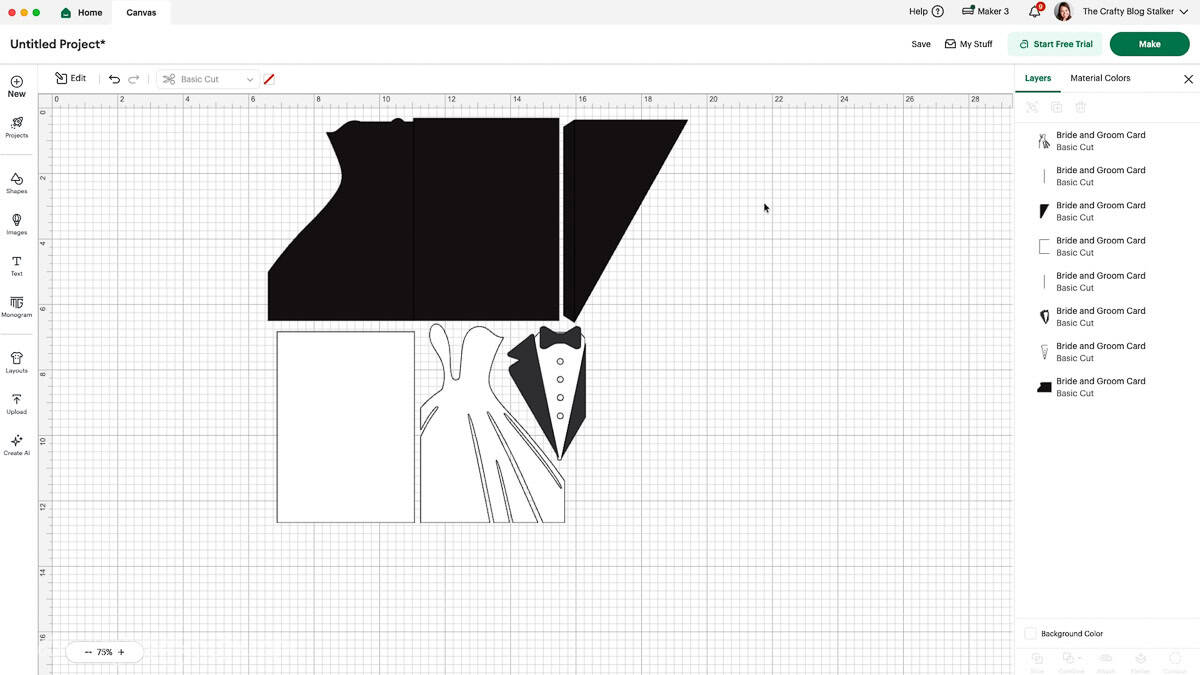
I’m utilizing Cricut Design Space for this task. If you’re employing a different cutting software, your interface may appear somewhat distinct, but the fundamental procedure remains unchanged.
The completed card fits an additional A6 envelope and dimensions approximately 4.5 x 6.25 inches when folded.
Begin by importing the SVG file into Cricut Design Space and incorporating it into your canvas.
As the design loads, all lines will be visible as cut lines.
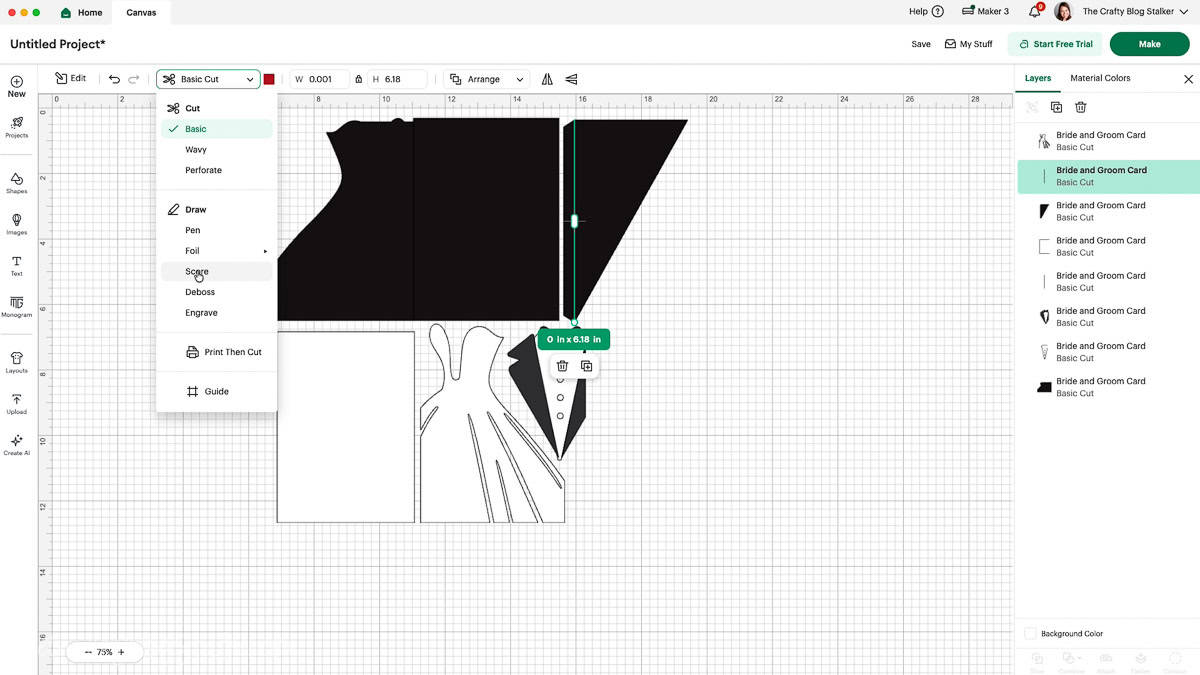
Two of these lines actually need to be adjusted to score lines to ensure the card folds accurately.
Since the card base is black, those lines can be slightly difficult to notice on the canvas. The simplest way to locate them is in the Layers panel.
Search for the two vertical lines, select them, and modify them from Cut to Score. Afterwards, attach them to the card base so the Cricut machine understands precisely where to score.
When everything is set, click Make.
Examine the mat preview screen to confirm the pieces appear correct, then move on to the material settings.
Choose Medium Cardstock as your material. Cricut Design Space will notify you when to include the scoring wheel or scoring stylus prior to cutting.
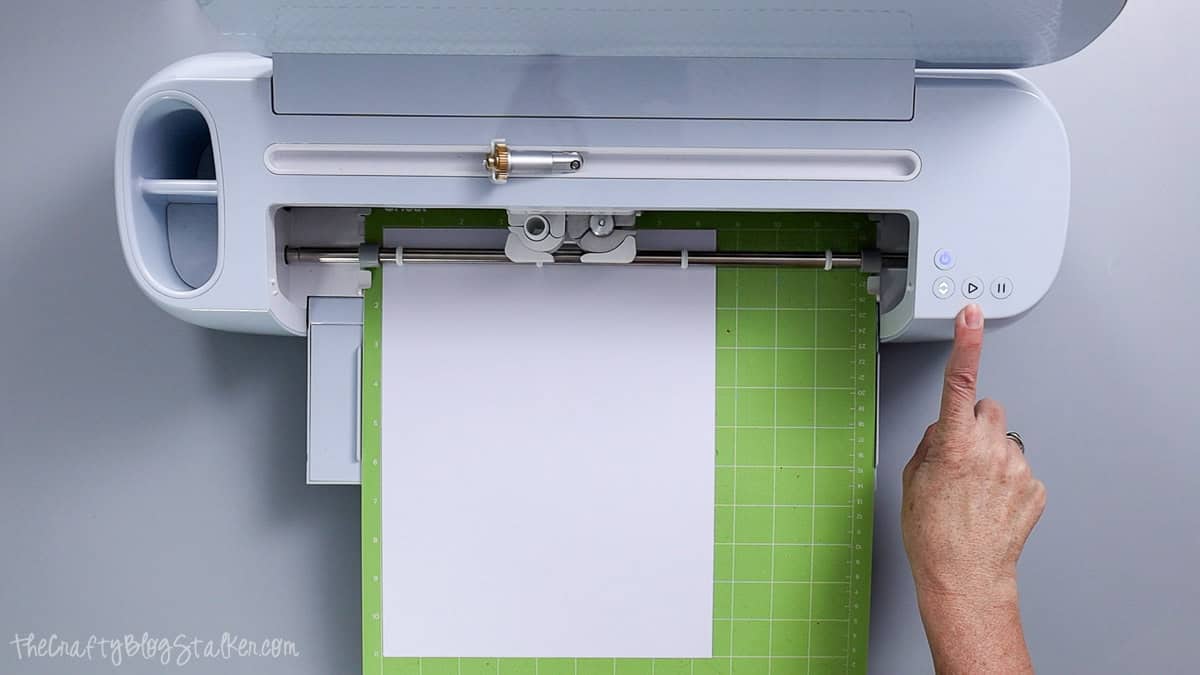
Allow the Cricut machine to cut all of the components from your cardstock.